Let's Shape The Future Of Your Investments!
Natoque iaculis cursus augue urna commodo aptent morbi tortor porttitor quis ornare.


Debugging n8n workflows can feel like untangling a distributed system on a single screen. When an automation fails, the culprit could be anywhere—a misconfigured node, an API change, a data type mismatch, or a cryptic error message. A systematic, MECE (Mutually Exclusive, Collectively Exhaustive) approach is your strongest ally.
This guide provides a layered debugging checklist, moving from high-level workflow logic to granular node-level issues, culminating in a visual Mermaid workflow to keep you on track.
Before hitting “Execute Workflow,” eliminate the obvious.
null “or” undefined in expressions.When a test run fails, observe the execution path and data transformation.
401 (auth), 403 (forbidden), 429 (rate limit), 5xx (server error) are direct clues.string but receiving an integer or an array? Use toString() or JSON.stringify() in expressions if needed.Split In Batches or Merge nodes, verify the item structure pre- and post-operation.IF OR Switch nodes evaluate correctly? Inspect the data at that branch point.Loop Over Items, is the incoming data an array? Is the loop extracting the correct sub-item?If the workflow runs but results are wrong, or it fails intermittently, look broader.
Follow this decision tree to methodically isolate the issue.
flowchart TD
    A[Workflow Execution Fails] --> B{Layer 1: Pre-Execution Check};

    B --> B1[Trigger Active?];
    B1 -->|No| B2[Activate Trigger];
    B2 --> B;

    B1 -->|Yes| B3[Credentials Valid?];
    B3 -->|No| B4[Renew Credentials];
    B4 --> B;

    B3 -->|Yes| C{Layer 2: Execute & Inspect};

    C --> C1[Run Test];
    C1 --> C2{Error Message?};

    C2 -->|Yes| C3[Analyze Error];
    C3 --> C4[Check Node Config<br>Data Types, Required Fields];
    C4 --> C5[Fix & Retest];
    C5 --> C1;

    C2 -->|No<br>But Wrong Result| C6[Inspect Debug Panel];
    C6 --> C7[Trace Data Flow<br>Check Conditions & Loops];
    C7 --> C8[Adjust Logic/Expressions];
    C8 --> C1;

    C2 -->|No<br>Success| D[✅ Debug Complete];

    C5 --> D;
    C8 --> D;

    C --> E{Layer 3: Intermittent/Systemic?};
    E -->|Yes| E1[Check External Systems<br>API Limits, Data State];
    E1 --> E2[Check n8n Environment<br>Logs, Memory, Version];
    E2 --> E3[Implement Fix];
    E3 --> C1;
The above is Mermaid text to code shows you the process, if you need to save the workflow in the image, here it is:
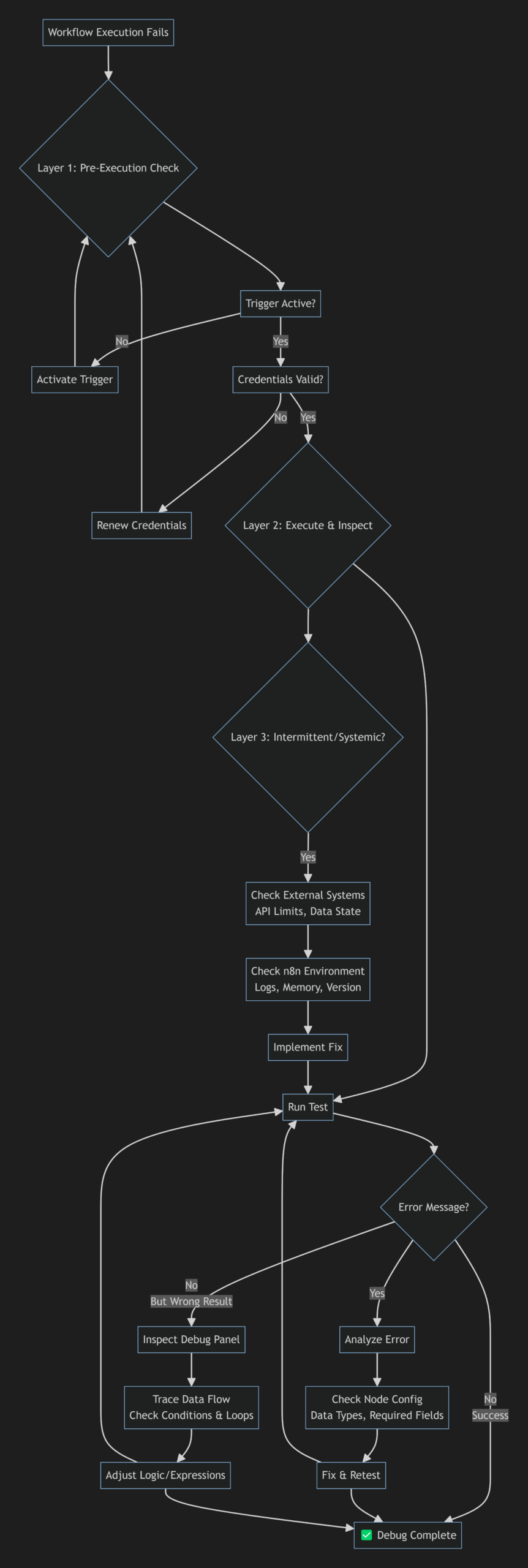
Remember: Debugging is hypothesis testing. Use the MECE checklist to form a hypothesis (“The error is in the data transform before the API call”), test it using the debug panel, and iterate. The flowchart keeps you from jumping layers prematurely.
By structuring your approach, you transform debugging from a frantic search into a logical, and even satisfying, engineering task.
Happy automating!